
Blog · Sat Nov 07 2026
How to Hide Unwanted Posts from Your WordPress Homepage
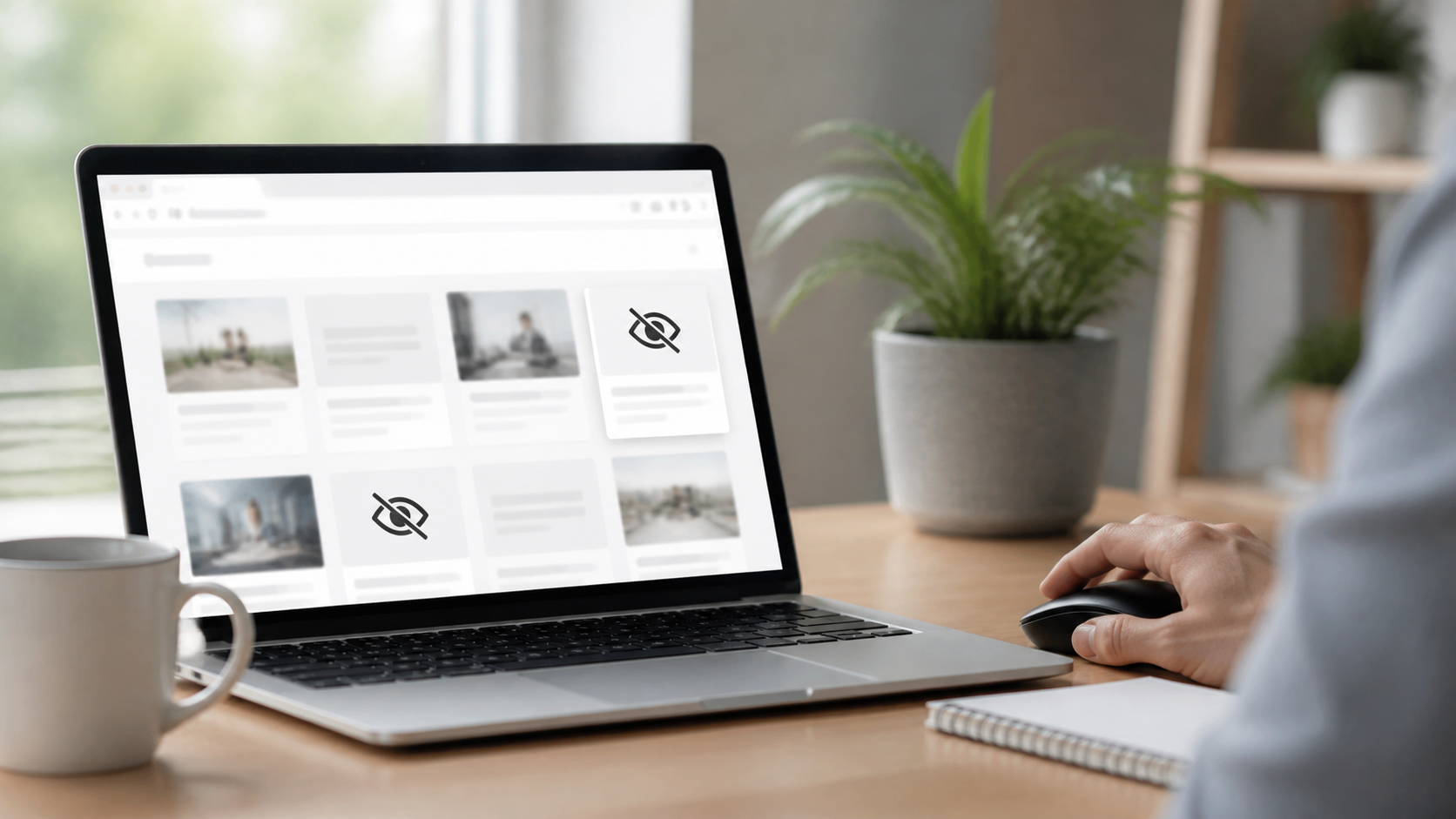
Your WordPress homepage is often the first page visitors see. If it shows announcements, outdated offers, private updates, or posts meant for a different audience, you may want to hide those posts from the homepage without deleting them. The right method depends on how your site is built and whether you want to exclude one post or a whole group.
Below are practical options for WordPress site owners and SEO agencies in Pakistan. Before changing your site, make a backup and test the result on a staging site if possible.
First, check how your homepage displays posts
WordPress can show your latest posts automatically, or it can use a static page as the homepage. Go to Settings → Reading in your dashboard to see which option is selected. If your homepage is a custom page built with a block theme or page builder, its post list may be controlled by a separate query or widget.
This check matters: changing the default blog feed will not necessarily change a custom homepage layout.
Method 1: Exclude posts by category
If you regularly publish posts that should stay off the homepage, create a category such as “Homepage excluded.” Assign it to the relevant posts, then exclude that category from the homepage feed. This is easier to maintain than editing code every time you publish.
Use a plugin for a no-code solution
Search the WordPress plugin directory for a reputable plugin that can exclude categories or individual posts from the main blog feed. Check its latest update date, compatibility, reviews, and settings before installing it. Some plugins let you choose whether exclusions apply to the homepage, archives, search results, or RSS feeds, so read the options carefully.
After configuring the exclusion, clear your caching plugin and any host or CDN cache. Then check the homepage in a private browser window. A cached page may continue showing a post even when the setting is correct.
Use a code snippet to exclude a category
If you are comfortable adding a small snippet, you can modify the main homepage query. Replace 123 with the category ID you want to exclude:
function cp_exclude_home_category( $query ) {
    if ( ! is_admin() && $query->is_main_query() && $query->is_home() ) {
        $query->set( 'cat', '-123' );
    }
}
add_action( 'pre_get_posts', 'cp_exclude_home_category' );
Add the snippet to a child theme’s functions.php file or use a trusted code-snippet plugin. Avoid editing the parent theme directly, because a theme update can remove your changes. The negative category ID tells WordPress to leave that category out of the main posts feed.
Method 2: Hide a single post
For one-off exclusions, look for a plugin that supports hiding individual posts from the homepage while keeping them published. This is useful for a time-sensitive announcement or a post that still needs to be accessible through a direct URL.
Some themes and page builders also offer visibility controls for query results. If your homepage uses a Query Loop block, edit the page, select the block, and review its query settings. Depending on your WordPress version and theme, you may be able to filter by category or tag. Page builders often provide similar filters in their posts or blog widgets.
Method 3: Use a static homepage
If you want complete control over what appears on the front page, create a page with your preferred sections and select it under Settings → Reading → Your homepage displays. You can then add a curated post list, featured content, or calls to action instead of showing the newest posts automatically.
This approach works well for business sites that need a stable landing page. Remember to maintain the page manually or configure its post blocks so that new content appears where you intend.
Will hiding a post hurt SEO?
Hiding a post from the homepage does not delete it. If the post remains published and indexable, search engines and visitors may still reach it through its URL, internal links, categories, or search results. Keep useful posts live, link to important ones from relevant pages, and avoid removing content just because it is not suitable for the front page.
If a post must be private, use the appropriate visibility setting rather than simply hiding it from a feed. If you remove a URL altogether, consider whether a redirect or a proper 404 response is appropriate. Also review archive pages, menus, and related-post sections: excluding a post from the homepage may not hide it from those locations.
Check your changes before publishing
- Confirm whether the site uses the default feed or a custom homepage.
- Test the homepage on mobile and desktop after clearing caches.
- Check pagination so older posts still appear as expected.
- Verify that the post remains accessible in any locations where you want readers to find it.
Consistent publishing makes it easier to keep a homepage fresh without filling it with content that does not fit. ContentPilot writes and publishes a complete blog with a featured image for Rs 15 per blog, and new accounts get 10 free credits.